Consultation, monitoring and operational actions on orders and trades
Version 1.0
1. Module Overview
The Order Management module centralizes the consultation and monitoring of orders and executed trades. Navigation is organized into two tabs.
Main module tabs.
Field
Description
Orders
View orders, select records, cancel orders, and open Order Details.
Trades
View executed trades and the participants associated with each transaction.
Important The module does not support order entry or replacement. Available actions are limited to the scope described in this manual.
2. Orders Tab
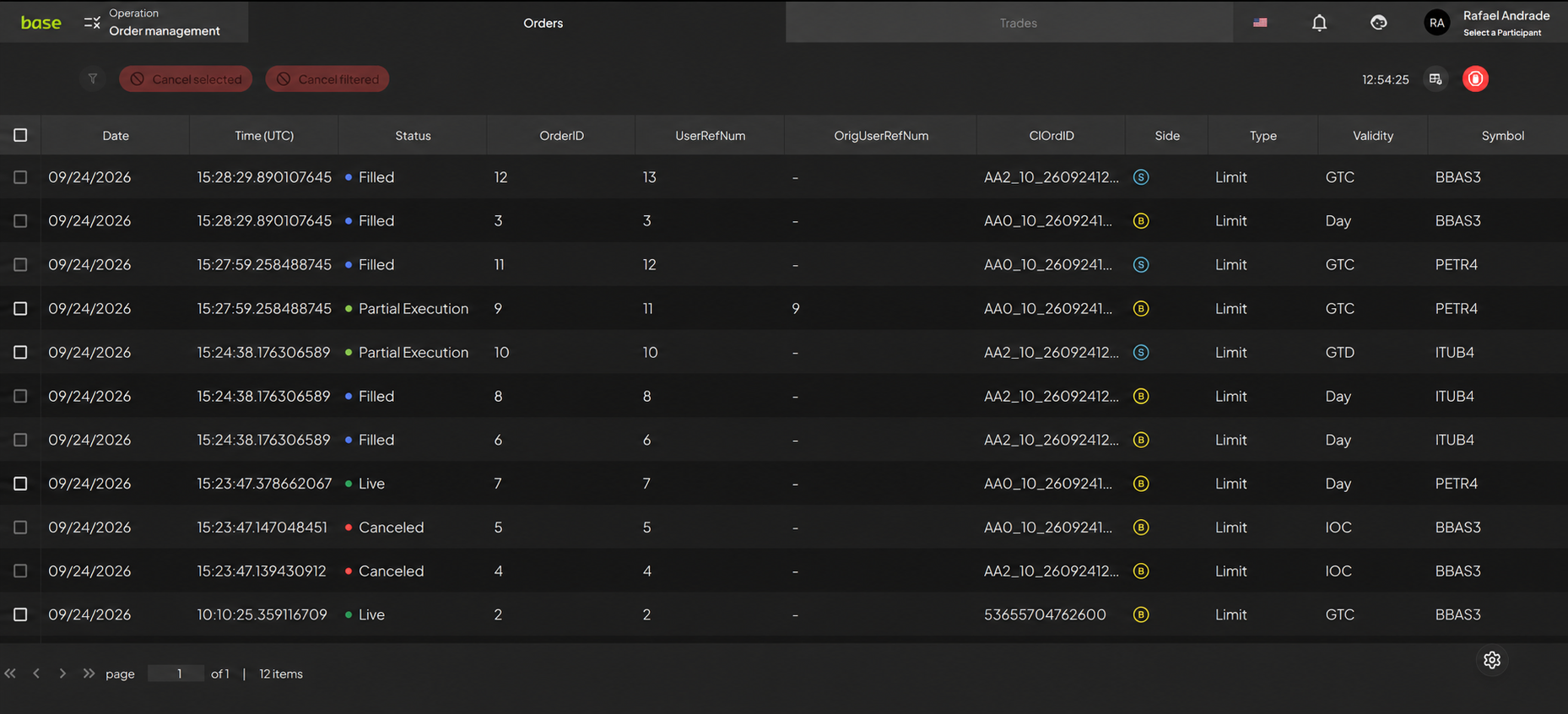
Orders tab.
2.1 Order Identification
The numbers in the table match the interface callouts.
Field
Description
Date
Order entry date.
Time (UTC)
Order entry time in UTC.
Status
Current order status in the trading lifecycle: Live — order registered and active in the order book; Rejected — order rejected by the system upon submission; Canceled; Filled — order fully executed; Partially Filled — order partially executed.
OrderID
Unique identifier assigned by BASE to each registered order.
UserRefNum
Order identifier in the ALO protocol.
OrigUserRefNum
Original ALO order identifier, retained after a replacement to preserve the audit trail.
ClOrdID
Unique identifier assigned by the client to each order.
2.2 Order Characteristics
Field
Description
Side
Indicates whether the order is a buy or sell order.
Type
Order classification specified upon entry. Market: executes at the best available price; Limit: executes subject to the specified limit price; Cross: matches a buy and a sell from the same participant at one price.
Validity
Order duration: Day (valid for the current trading day); GTC (valid until filled or canceled); IOC (fills immediately where possible and cancels the balance); FOK (requires an immediate full fill); GTD (valid until the specified date); At Close (processed at the market close).
Symbol
Instrument trading symbol.
Price (R$)
Order price per unit, in Brazilian reais.
2.3 Quantities
Field
Description
Total Quantity
Total quantity originally entered for the order.
Executed Quantity
Quantity already executed.
Remaining Quantity
Quantity still awaiting execution or cancellation.
2.4 Participant and Session
Field
Description
Trader
User or trader responsible for submitting the order.
Account
Trading account associated with the order.
Broker
Broker responsible for submitting or handling the order.
Session
Trading session associated with the order.
Memo
Order notes or additional information.
Expiry Date
Order expiry date, when applicable.
STP
Self-Trade Prevention setting applied to the order.
Average Price (R$)
Average price of the order's executions.
MessageBody
Message associated with an order status, rejection, cancellation, or other event.
3. Filters
Filters let you refine the order query according to user-defined criteria.
Feature
Description
Applied filters
View all active filters in the query.
Create new filter
Create and save a new filter combination for later use.
4. Order Cancellation
Orders can be canceled in three ways, according to the desired scope.
Cancellation method
Description
Cancel selected
Cancels one or more orders selected by the user.
Cancel filtered
Requests cancellation of the orders matching the applied filters.
Panic Button
Cancels all eligible orders entered during the day.
4.1 Cancel selected
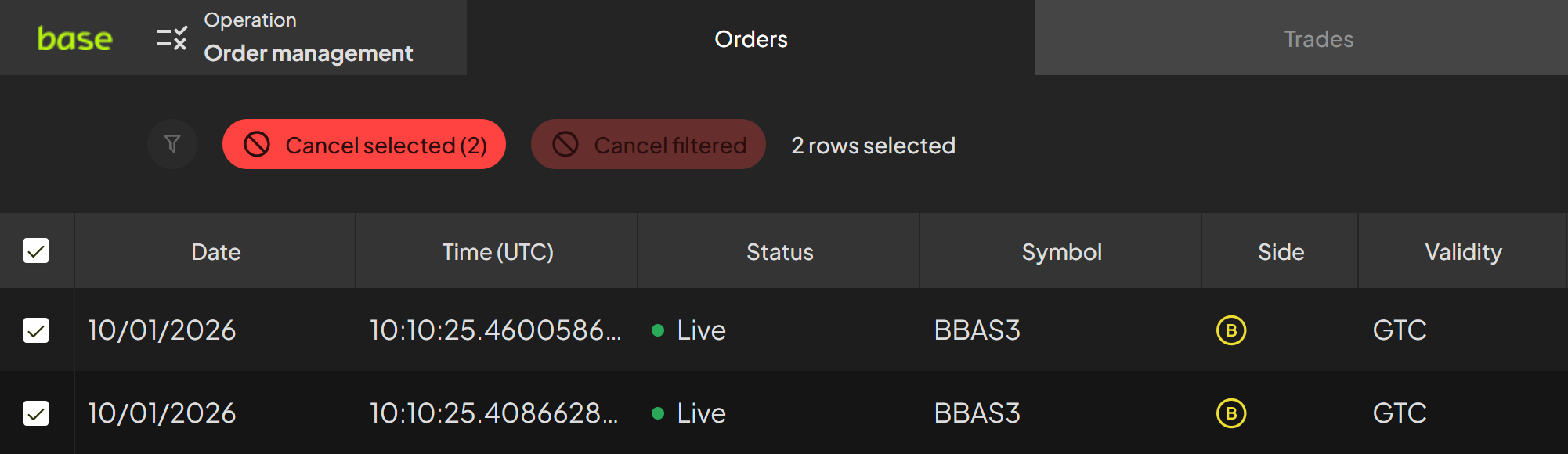
Lets you request the cancellation of one or more orders selected in the table.
Selected orders and the Cancel selected button enabled.
Select the checkbox of the orders you want to cancel.
Click Cancel selected.
Review the orders shown.
Confirm the cancellation request.
4.2 Cancel filtered
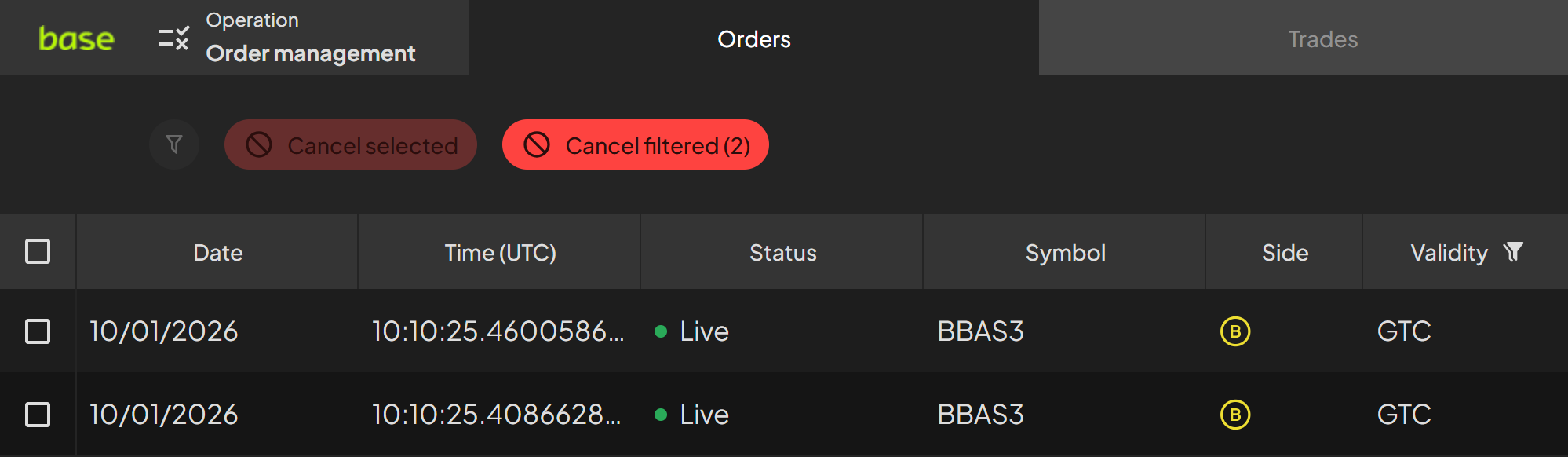
Lets you request the cancellation of the eligible orders matching the applied filters.
Filter applied and the Cancel filtered button enabled.
Apply the desired filter to one or more columns.
Review the orders resulting from the filtering.
Click Cancel filtered.
Confirm the cancellation request.
4.3 Cancel all orders of the day
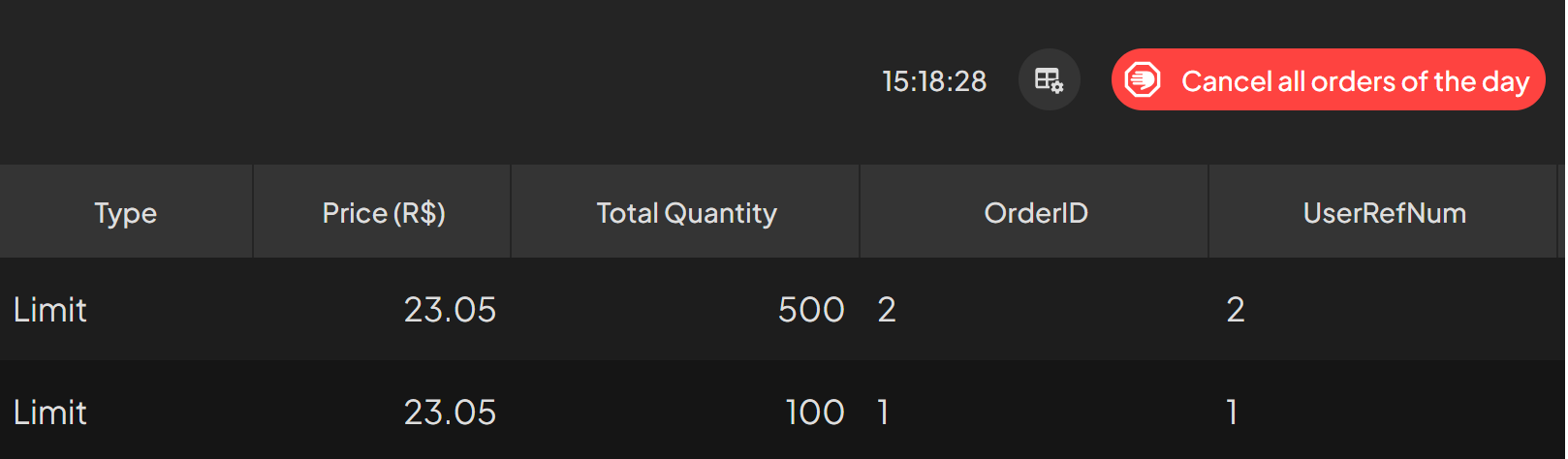
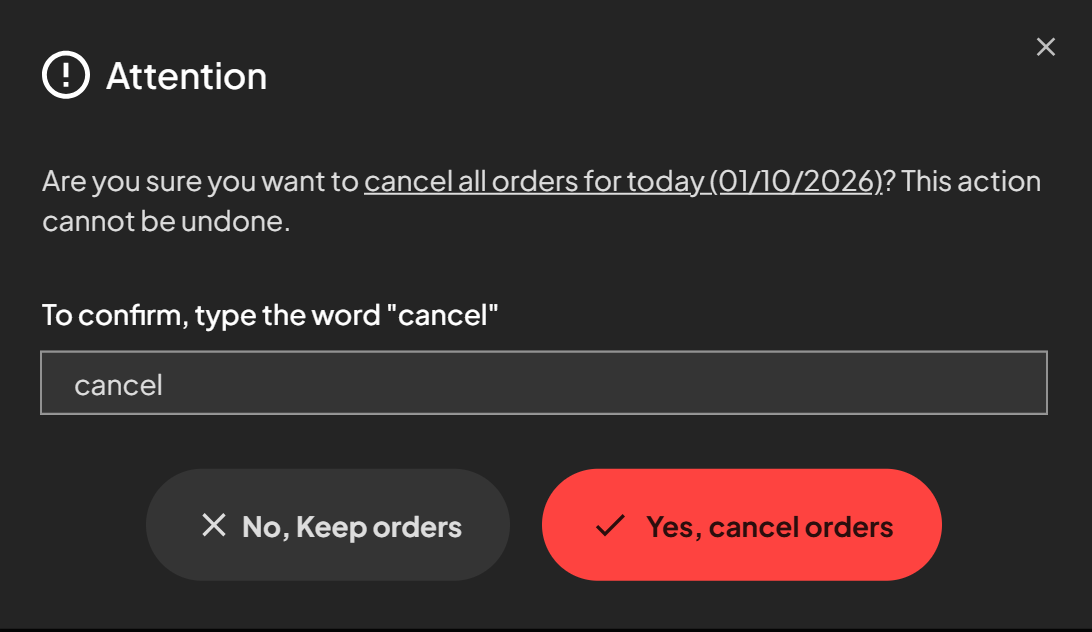
The Panic Button lets you request the cancellation of all eligible orders entered during the day.
→
Triggering the Panic Button and confirming the cancellation.
Click Cancel all orders of the day.
Review the date and the information shown.
Type the word “cancel” in the confirmation field.
Click Yes, cancel orders.
⚠ High-impact action Before confirming, verify the environment, the participant and the scope shown on the platform. This operation requires double confirmation to prevent accidental cancellations.
5. Screen Settings
The orders table can be customized to the user's needs. You can pin, show or hide columns, adjust their width and position, and sort data in ascending or descending order based on the desired column.
Feature
Description
Show columns
Select which columns are displayed or hidden in the table.
Font size
Adjust the font size used in the table.
Row spacing
Change the row spacing and the density of the information shown.
Orders per screen
Set the number of orders displayed per page.
5.1 Column Customization
Feature
Description
Pin columns
Pin columns to the grid, keeping them visible while scrolling.
Column width
Adjust the column width.
Column position and order
Change the position and display order of the columns.
Sort data
Sort data in ascending or descending order based on the desired column.
How to adjust column width Place the cursor at the edge of the column header and drag until reaching the desired width.
How to change column position in the grid Click and hold the column header, drag it to the desired position and release.
6. Order Details
Order Details displays execution data, order characteristics, and the audit trail for the selected order.
Opening order details from the context menu.
Field
Description
Selected Order
Right-click the row of the order you want to inspect.
Order Details
Select "Order Details" from the context menu.
Result The platform opens Order Details for the selected order.
6.1 Execution
Field
Description
Filled
Total order quantity already filled.
Remaining
Quantity still awaiting execution or cancellation.
Current price
Current instrument price when the order is viewed.
Average price
Average price of the order's executions.
6.2 Characteristics
Field
Description
Instrument
Instrument associated with the order.
Side
Indicates whether the order is a buy or sell order.
Status
Current order status in the trading lifecycle.
Order Type
Order type specified upon entry.
Time in Force
Order time-in-force instruction.
Expiry
Expiry date, when applicable.
Sender Location
Connection or location used to submit the order.
STP Prevention
Self-Trade Prevention setting applied to the order.
Memo
Notes or additional information.
6.3 Origin and Audit Trail
The numbers in the table match the callouts on the details screen.
Field
Description
Broker
Broker responsible for order submission or handling.
Document
Client document or identification associated with the order.
Account
Trading account associated with the order.
Trader
User or trader responsible for the order.
Session
Trading session associated with the order.
Last Modified
UTC date and time of the most recent order update.
Created
UTC date and time when the order was created.
7. Trades Tab
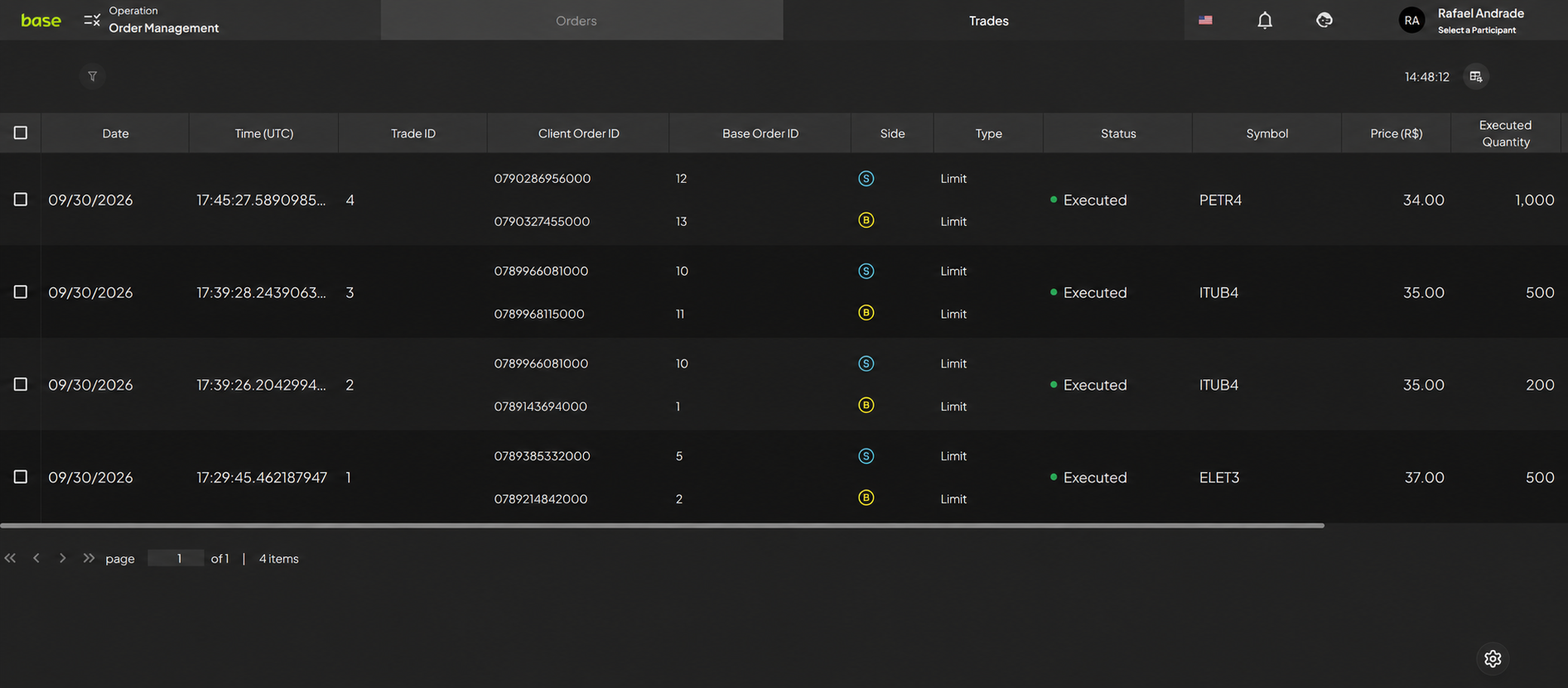
The Trades tab consolidates executed trades and the participants associated with each transaction.
Trades tab.
7.1 Trade Identification
Field
Description
Date
Trade execution date.
Time (UTC)
Trade execution time in UTC.
Trade ID
Unique identifier assigned to each executed trade.
Client Order ID
ClOrdID assigned by the client's originating system.
Base Order ID
Identifier of the platform order associated with the trade.
7.2 Trade Characteristics
Field
Description
Side
Indicates the buy or sell side of the trade.
Type
Type of order that generated the trade.
Status
Status of the trade resulting from the execution.
Symbol
Trading symbol of the executed instrument.
Price (R$)
Price per unit at which the trade was executed.
Executed Quantity
Quantity executed in the trade.
7.3 Participant
Field
Description
Broker
Broker responsible for handling the trade.
Account
Trading account associated with the trade.
Document ID
Client document ID associated with the executed trade.
User Manual — Order Management · Version 1.0 · BASE Exchange · External-use document